
The kit
Elements [18]
EK PDF Viewer
Bundled PDF.js
Lazy initialization
PDF Viewer
Embeds a consistent cross-browser PDF viewer using bundled PDF.js, showing one page at a time and initializing only when the viewer scrolls near the viewport.
Dynamic Data
PDF file URL
Lazy load
About 200 pixels before view
Dependencies
No CDN required
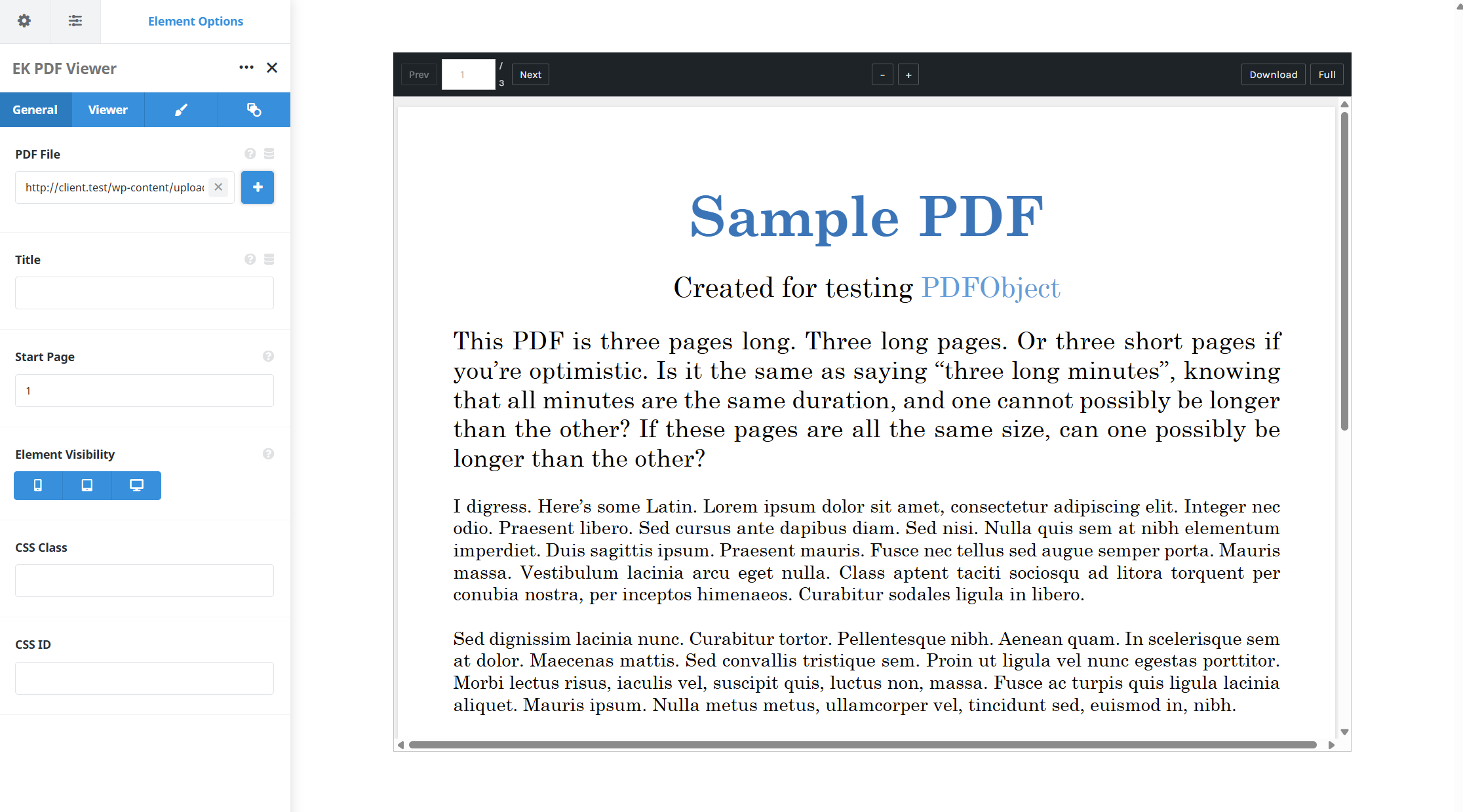
One page at a time, with page navigation and zoom presets.
Example of PDF Viewer with download and print button…
Example of PDF Viewer with background and toolbar background colours…
Use cases
Key features
What the element does, in plain terms. Every individual control is listed in the settings reference below.
Loading
Bundled PDF.js
The library ships with the plugin and loads through a dynamic import when it is needed, so there is no CDN dependency.
Lazy initialization
An IntersectionObserver starts loading roughly 200 pixels before the viewer enters view, and a placeholder holds the space until it is ready.
Graceful states
Loading progress, an error message with a direct link to open the PDF, and a noscript fallback are all handled.
Reading
Toolbar
Previous and next page, a page number jump, zoom presets with fit-width as the default, and optional download, print, and fullscreen controls.
Flexible frame sizing
A fixed pixel height, a viewport-relative height, or an aspect ratio preset such as A4, Letter, or 16:9.
Responsive outer spacing
Margin and padding per breakpoint on the viewer frame.
Settings reference
Every setting the element exposes, grouped by builder tab. Options are listed where the setting offers a fixed set of choices.
Document General tab
PDF file
Dynamic Data
The document to display, either from the media library or as an external URL. External files must allow cross-origin requests.
Initial page
Which page the viewer opens on, for documents where the useful content starts further in.
Frame General and Design tabs
Height mode
Fixed pixels · Viewport height · Aspect ratio
Fixed pixels pins an exact height. Viewport height scales with the browser window. Aspect ratio keeps the frame in proportion using a preset.
Aspect ratio preset
A4 · Letter · 16:9
The proportion used when the height mode is set to aspect ratio. A4 and Letter match common page shapes, and 16:9 suits slide decks.
Height value
The exact height used by the fixed pixel and viewport height modes.
Width
Frame width within its column, for documents that should not span the full content area.
Toolbar General tab
Page navigation
On · Off
Shows previous and next page controls with the current page indicator.
Page number jump
On · Off
Lets the visitor type a page number to move straight to it.
Zoom presets
Fit width is the default
Preset zoom levels, so a visitor can widen a dense page without pinching.
Download button
On · Off
Offers the original file for download. Hiding it does not protect the file, because the PDF URL stays publicly accessible.
Print control
Off by default
Adds a print button. It is off by default because browser print behaviour for embedded PDFs is inconsistent.
Fullscreen control
On · Off
Expands the viewer to fill the screen, which helps with wide drawings and plans.
Spacing Design tab
Margin
Per breakpoint
Outer spacing around the element, set separately for large, medium, and small screens and scoped to this element instance.
Padding
Per breakpoint
Inner spacing between the element container edge and its content, also set per breakpoint.
Extras Extras tab
Conditional Rendering
Avada logic conditions
Shows or hides the element based on logged-in state, user role, and the other conditions Avada’s logic system offers.
On this page
